How Can We Help You?
Alternatively, you can also browse on the topics below to find what you are looking for.
JaGaApp 2.0 Link Property
Overview
- Linking Your Property For the First Time
- Linking Additional Properties
Linking Your Property For the First Time

Tap on Link Property header banner to get started.
Most JaGaApp features will be inactive until you have successfully linked your account with a property.

Follow the instructions on your phone, then click "Scan Your Community QR Code" when you have the property QR code with you.
Please allow camera access on your phone when required.

Scan the property QR code provided by your management with your phone camera.

Select your type of Ownership.

Insert your Block and Unit details.

Click "Submit For Approval".

Make sure your information are all correct and click "Confirm".

Your homepage will now display "Waiting for your Management Office Approval". You will receive in-app notifications once your management approves your request!
The time taken for approval is subject to your management's requirements and SOPs.
Linking Additional Properties
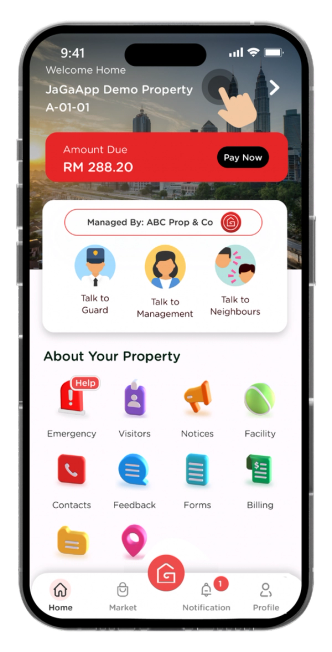
Tap on the Property Name on the top bar to get started.
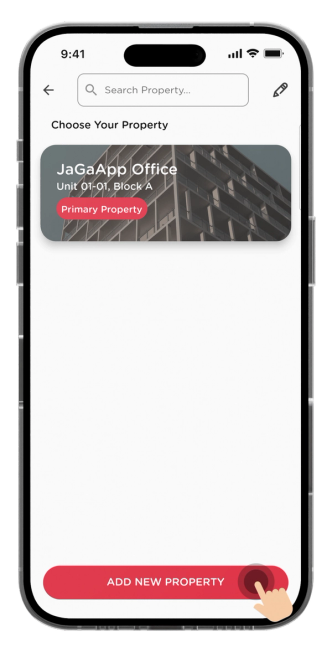
Click "Add New Property".
You can also use the Search Bar to look for any properties that are linked to your account.
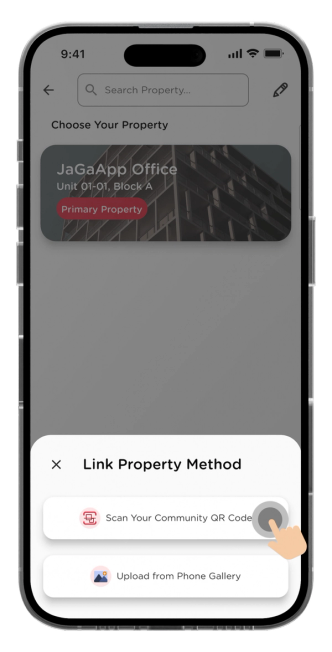
Follow the instructions on your phone, then click "Scan Your Community QR Code" when you have the property QR code with you.
Please allow camera access on your phone when required.
Scan the property QR code provided by your management with your phone camera.
Select your type of Ownership.
Insert your Block and Unit details.
Click "Submit For Approval".
Make sure your information are all correct and click "Confirm".
Your homepage will now display "Waiting for your Management Office Approval". You will receive in-app notifications once your management approves your request!
The time taken for approval is subject to your management's requirements and SOPs.