How Can We Help You?
Alternatively, you can also browse on the topics below to find what you are looking for.
JaGaApp 2.0 My Profile
Overview
- View or Edit Account Details
- View or Setup Unit Intercom Numbers
- View or Setup Family Members
- View or Setup Tenants
- Activate Tenant Mode
- Activate Do Not Disturb Mode
- View or Setup Emergency Contacts
- Others
View or Edit Account Details

Tap on "Profile" to get started.

Click this icon to edit your Profile Picture.
You can choose to take picture from Camera or upload from Gallery. Allow camera access when required.

Click here to update profile details like JaGaApp Display Name and Mobile Phone.

Click here to view app settings.
View or Setup Unit Intercom Numbers
Tap on "Profile" to get started.

Go to "My Property".
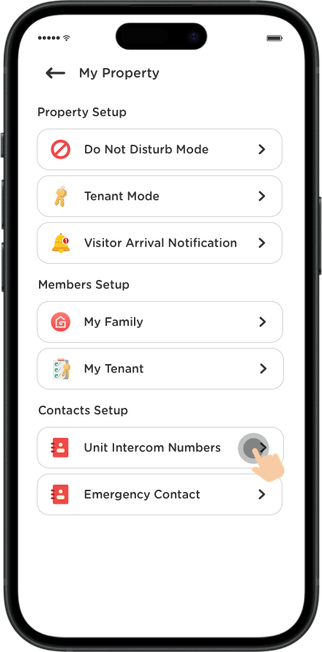
Click "Unit Intercom Numbers".

Enter unit intercom contact numbers and name, then click "Update Intercom Number".
Save up to 3 contacts so guards can contact alternative numbers if default is unreachable. Allow contacts access when needed.
View or Setup Family Members
Tap on "Profile" to get started.
Go to "My Property".

Click "My Family".

Click "Invite New Family Member".

Enter family member contact number and name, or add from phone book.
Allow contacts access when needed for import function.
Click "Submit New Family Member" after completing the form.

Click "Back to Profile".

Family member added with "Pending Approval" status. Management approval enables access.
Ensure family member has downloaded JaGaApp 2.0 and created account. No QR code scan needed.
View or Setup Tenants
Tap on "Profile" to get started.
Go to "My Property".

Click "My Tenant".

Click "Invite New Tenant Member".
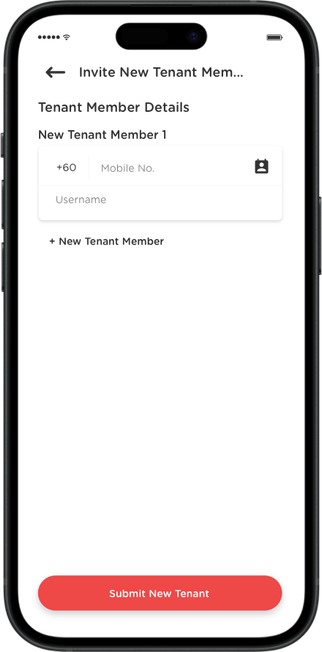
Enter tenant contact number and name, or add from phone book.
Allow contacts access when needed for import function.

Click "Submit New Tenant" after completing the form.
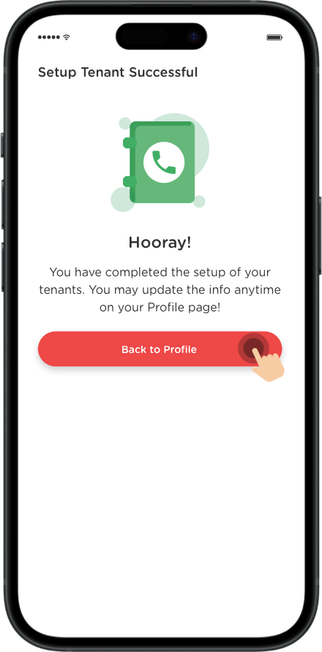
Click "Back to Profile".

Tenant added with "Pending Approval" status. Management approval enables access.
Ensure tenant has downloaded JaGaApp 2.0 and created account. No QR code scan needed.
Activate Tenant Mode

Click "Tenant Mode" to activate if you are not residing in the unit.

Enter tenancy period and click "Activate Now".
Owner loses access to Emergency Assist, Visitor Registration, Facility Booking. Tenant gets full app access.
Activate Do Not Disturb Mode
Click "Do Not Disturb Mode" when away or busy.
Enter away period validity and click "Activate Now".
Guards can register visitors for emergencies or unforeseen circumstances per existing SOPs.
View or Setup Emergency Contacts
Tap on "Profile" to get started.
Go to "My Property".

Click "Emergency Contact".
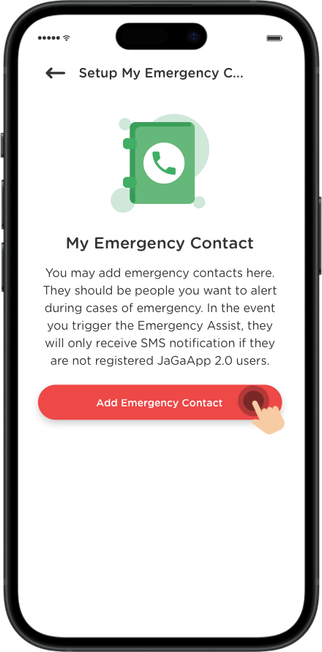
Click "Add Emergency Contact".
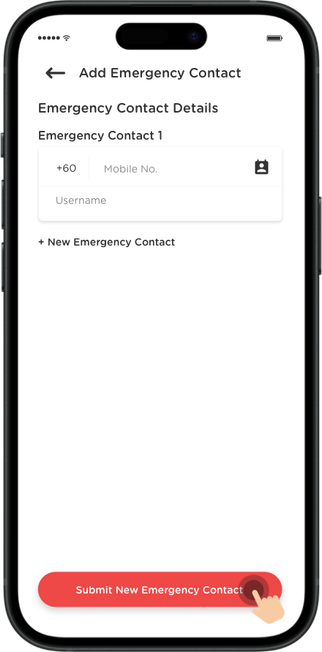
Enter emergency contact number and name, or add from phone book.
Allow contacts access when needed for import function.

Click "Submit New Emergency Contact" after completing the form.

Click "Back to Profile".